Instructional Design
Activity Header builder
Make the red banner that opens an activity — an icon, a title, and a line like “4 minutes” — as real text with alt text, ready to paste into Populi. No image to export.
This area is restricted to approved faculty. Sign in with your Microsoft account to continue.
Sign in with Microsoft
Make the red banner that opens an activity — an icon, a title, and a line like “4 minutes” — as real text with alt text, ready to paste into Populi. No image to export.
Build a styled resource card — title, image, description, and a link button — then copy the HTML into a Populi lesson or an email.
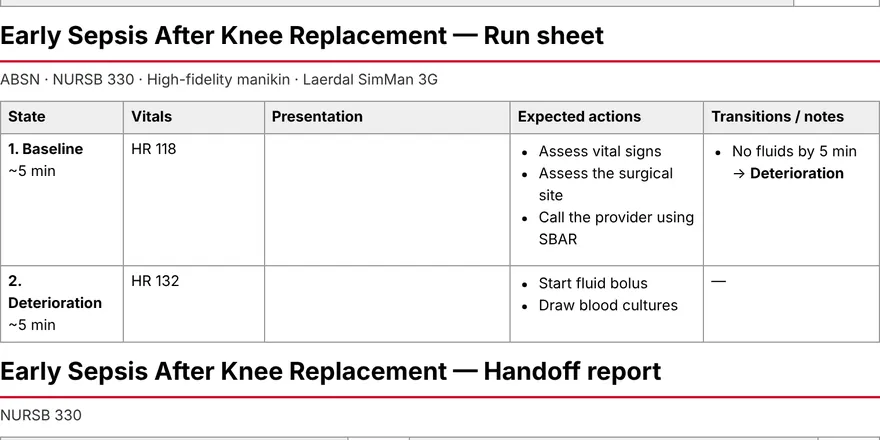
Design a simulation scenario once, with an AI first draft, then print the run sheet, build it in Laerdal LLEAP, and export it to the BAYADA Blueprint.
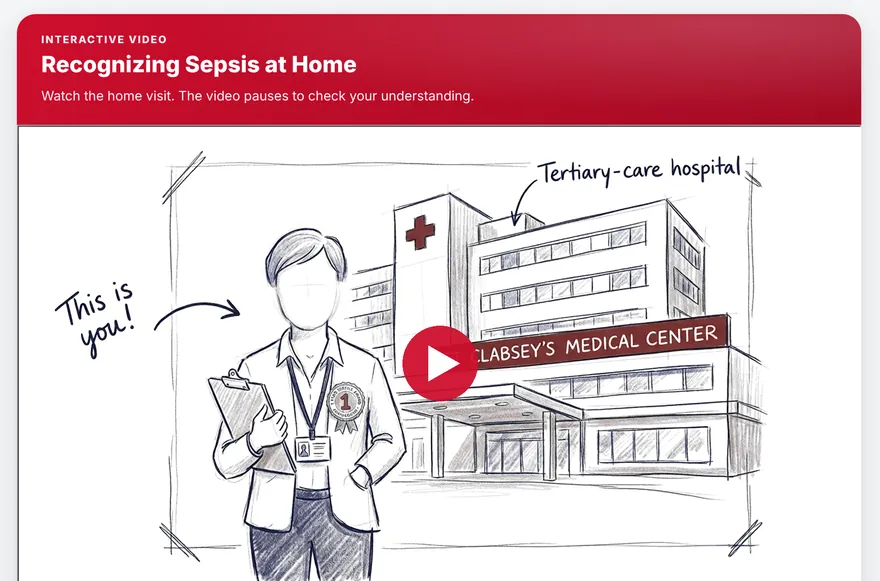
Pin chapter bookmarks and pop-up comprehension checks to a Vimeo video — it pauses and asks, then reports to the gradebook. Any length, including full-hour lectures.
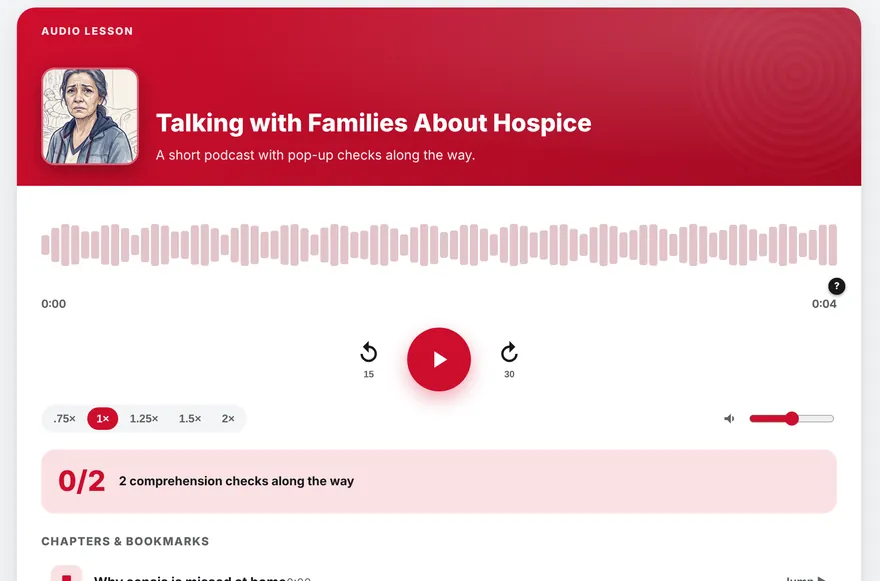
Record or upload narration to create a podcast-style player with chapter bookmarks and interactive pop-up comprehension checks that pause the audio.
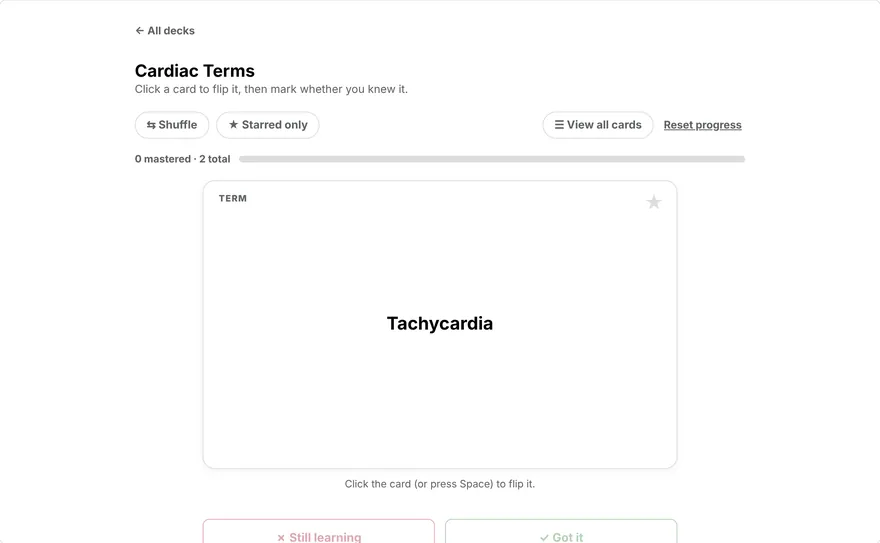
Build a term/definition flashcard deck students can shuffle, star, and self-quiz on, Quizlet-style — missed cards keep resurfacing until mastered.
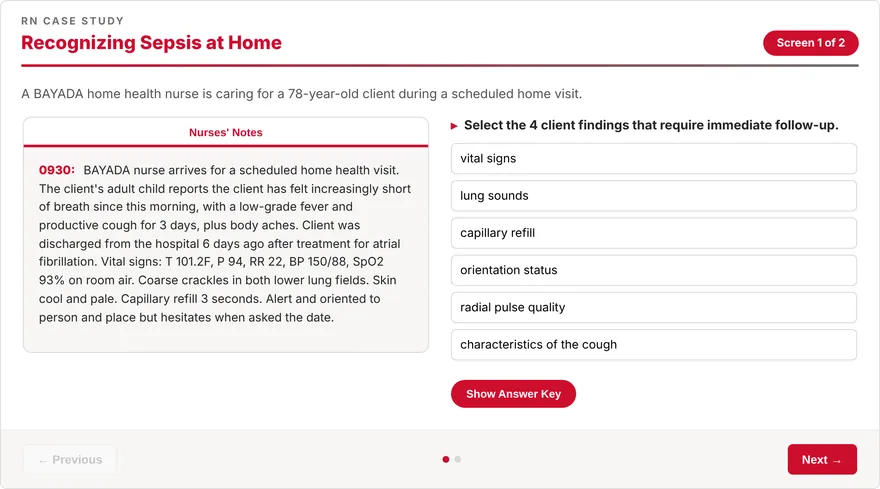
Build a multi-screen NCLEX-style clinical case study, plus optional per-screen audio or video coaching.
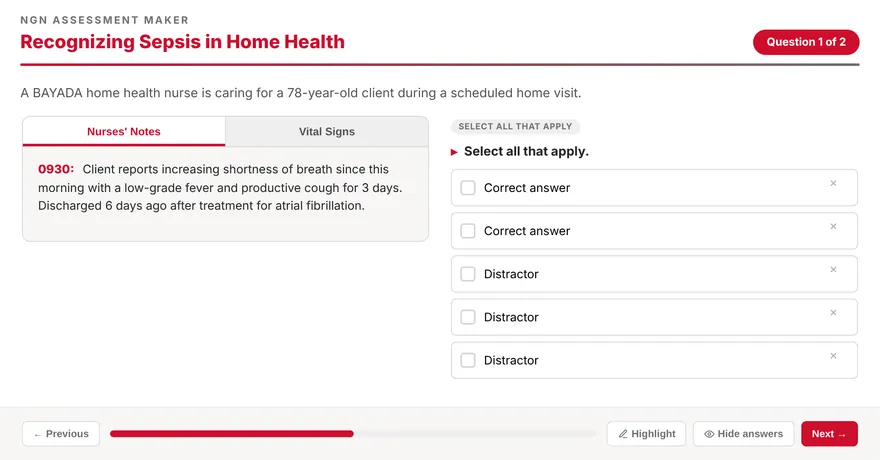
Build a Next-Gen NCLEX quiz mixing 11 question formats, with an optional chart/exhibit panel per question.
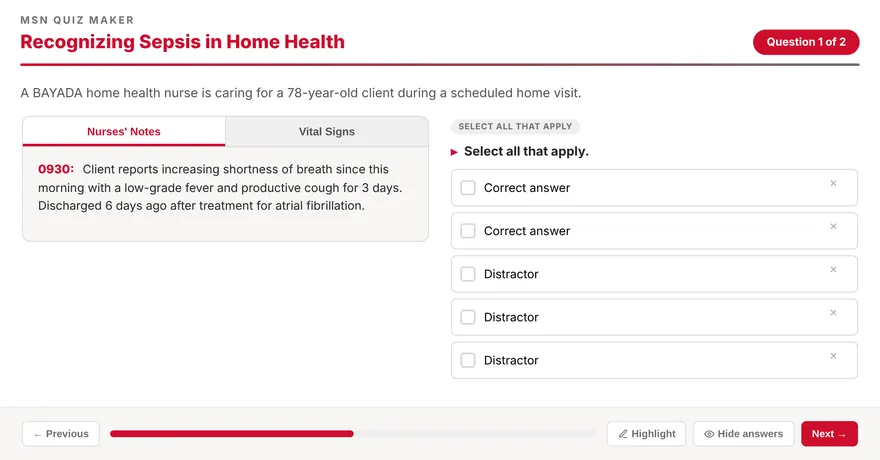
Build an assessment for master’s level students mixing 11 question formats, with an optional chart/exhibit panel per question.
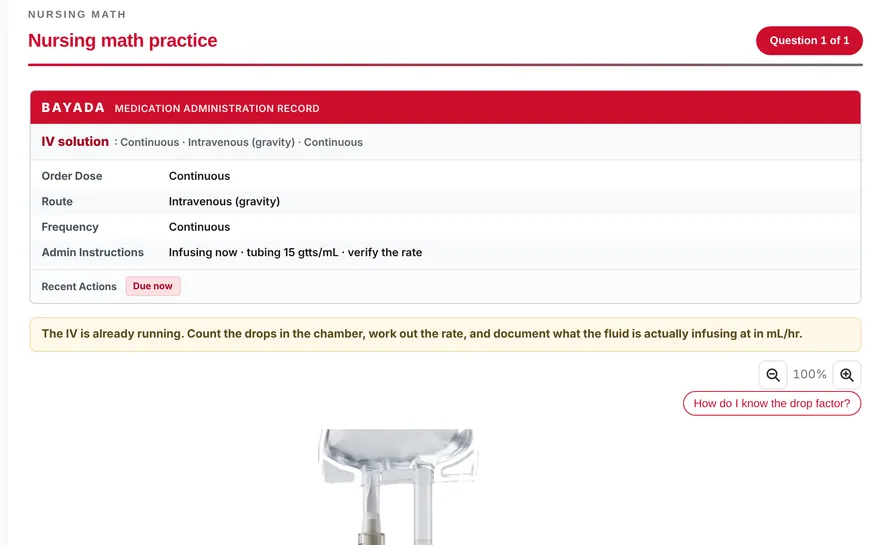
Build interactive nursing-math questions where students work the answer on a simulated tool, at Basic or Advanced difficulty.
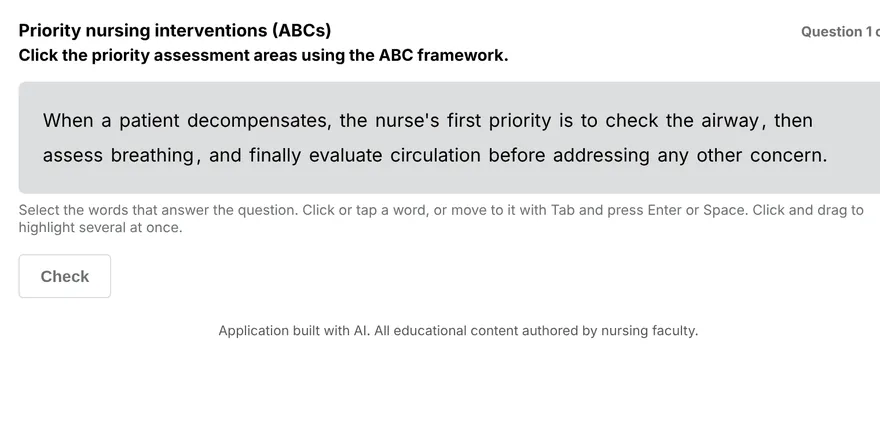
Build a highlight-the-answer quiz where students mark the correct words directly in a passage.
Build a bow-tie clinical judgment question linking client actions, the priority condition, and parameters to monitor.